![Orb_logotype_horizontal_white.png]](https://help-legacy.corti.ai/hs-fs/hubfs/Orb_logotype_horizontal_white.png?height=40&name=Orb_logotype_horizontal_white.png)
1. Introduction
After running a Call Search query, you might want to adjust the time range displayed in Time Series Graph to focus on one section of the graph at a time. The time range section of the visualization will enable to do so.
This HOW-TO requires access to the Call Search View, part of the Dashboard Module.
2. Step-by-step guidance
⚠️ A prerequisite to this HOW-TO is to create, populate and run a query so a Time Series Graph appears in your query.
To zoom-in on the Time Visualization Graph, adjust the edges of the graph's time range by clicking on the start & end line boundaries and dropping them where desired. You can also move the adjusted time range around, as shown below.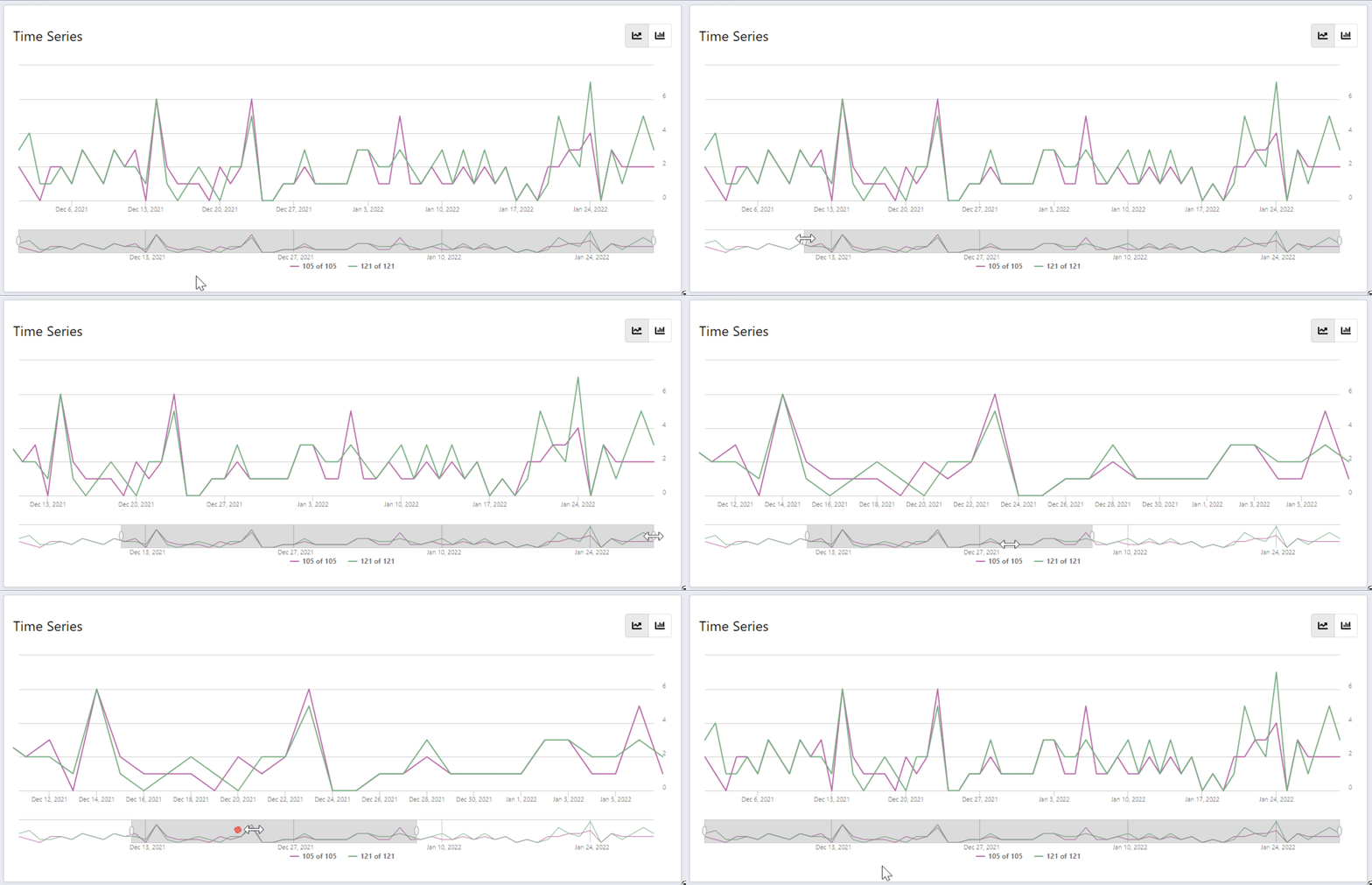
💡 This solution acts as a simple zoom in the time series visualization. To adjust your full query's output to a specific time period, you will need to filter per time range.